Chapter 22. Printing a report and saving it as a PDF
Part 3. Doing more.
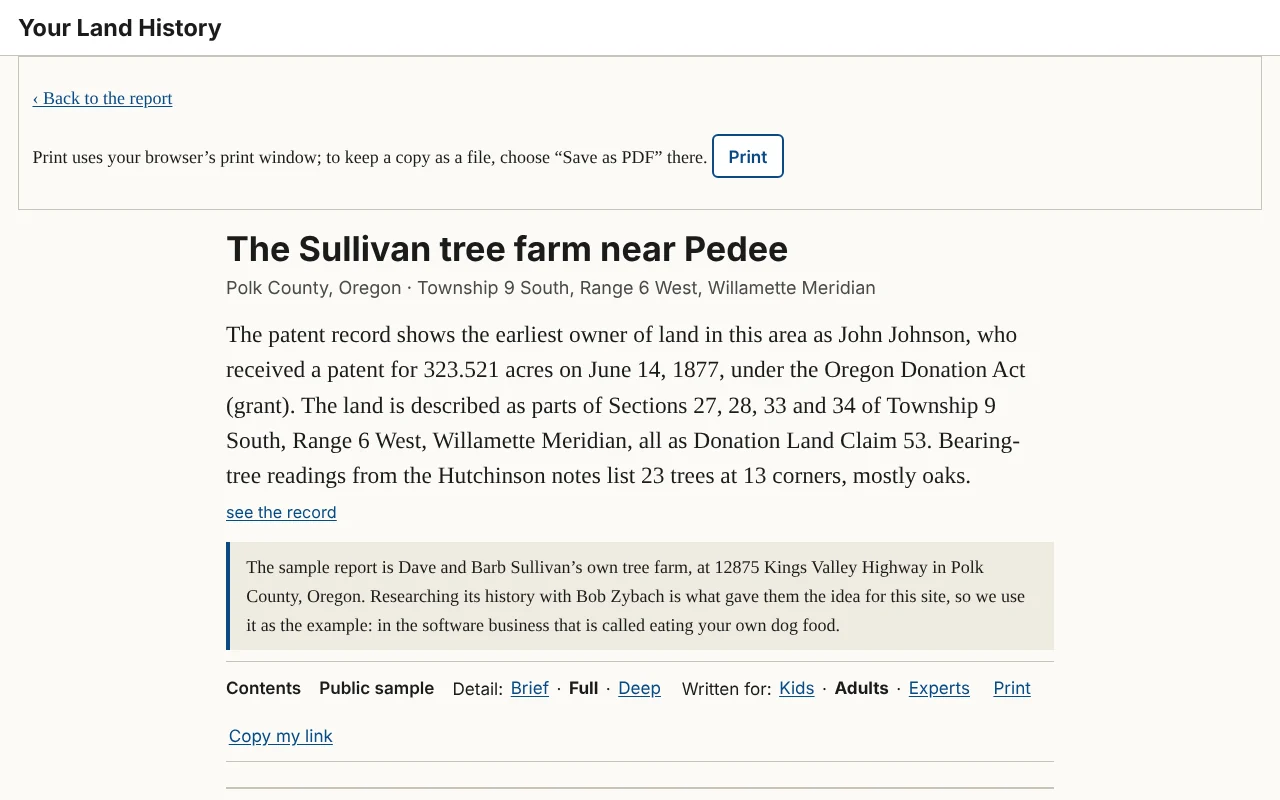
Touch Print in the row of controls. A print page opens with the report laid out for paper: no buttons, every picture with its caption, your Detail and Written for choices, and the appendix at the end. At its top is the line "Print uses your browser's print window; to keep a copy as a file, choose "Save as PDF" there," with a Print button. Touch it to open your browser's print window. Choose Brief before printing for a short printout, Deep for every record.
Saving a PDF file
A PDF is a file that looks exactly like the printed pages. The site does not make the file itself; your browser does, from its print window.
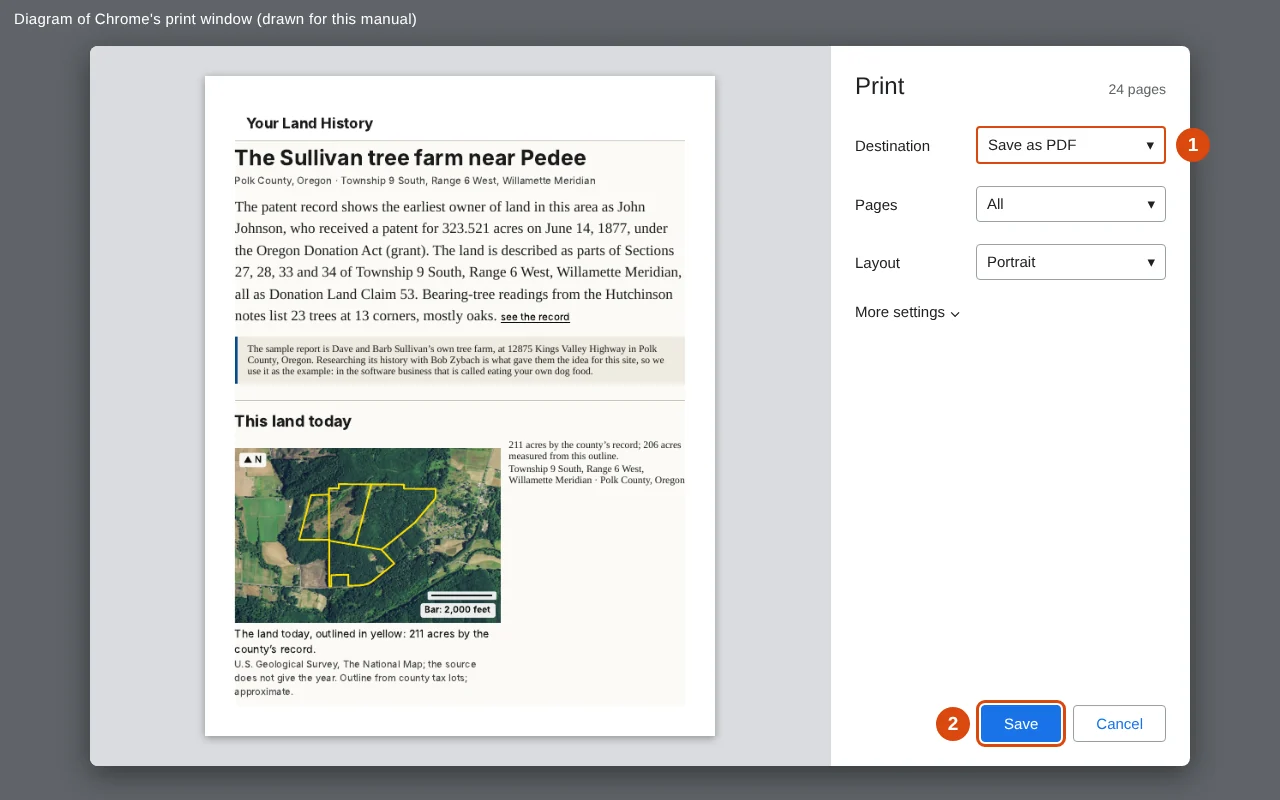
Chrome, on a Windows computer or a Mac. In the print window, find "Destination," choose "Save as PDF," then click "Save" and choose where to keep the file.
Edge, on a Windows computer. Under "Printer," choose "Save as PDF," then click "Save" and choose where to keep the file.
Safari, on a Mac. At the bottom of the print window, open the small menu marked "PDF" and choose "Save as PDF." Give the file a name and click "Save."
iPhone or iPad. The "Print Options" screen appears. Touch the share button at the top of the screen (a square with an arrow pointing up). If you do not see one, spread two fingers apart on the page preview to open it full size, then touch the share button. Choose "Save to Files," pick a place, and touch "Save."
Android phone. At the top of the print screen, touch the printer's name and choose "Save as PDF." Touch the round PDF button, choose a folder, and touch "Save."
Most print windows also have a setting called "Headers and footers," which adds the date and the page's web address to each sheet. Turn it off for clean pages, or leave it on to keep the report's link on paper.