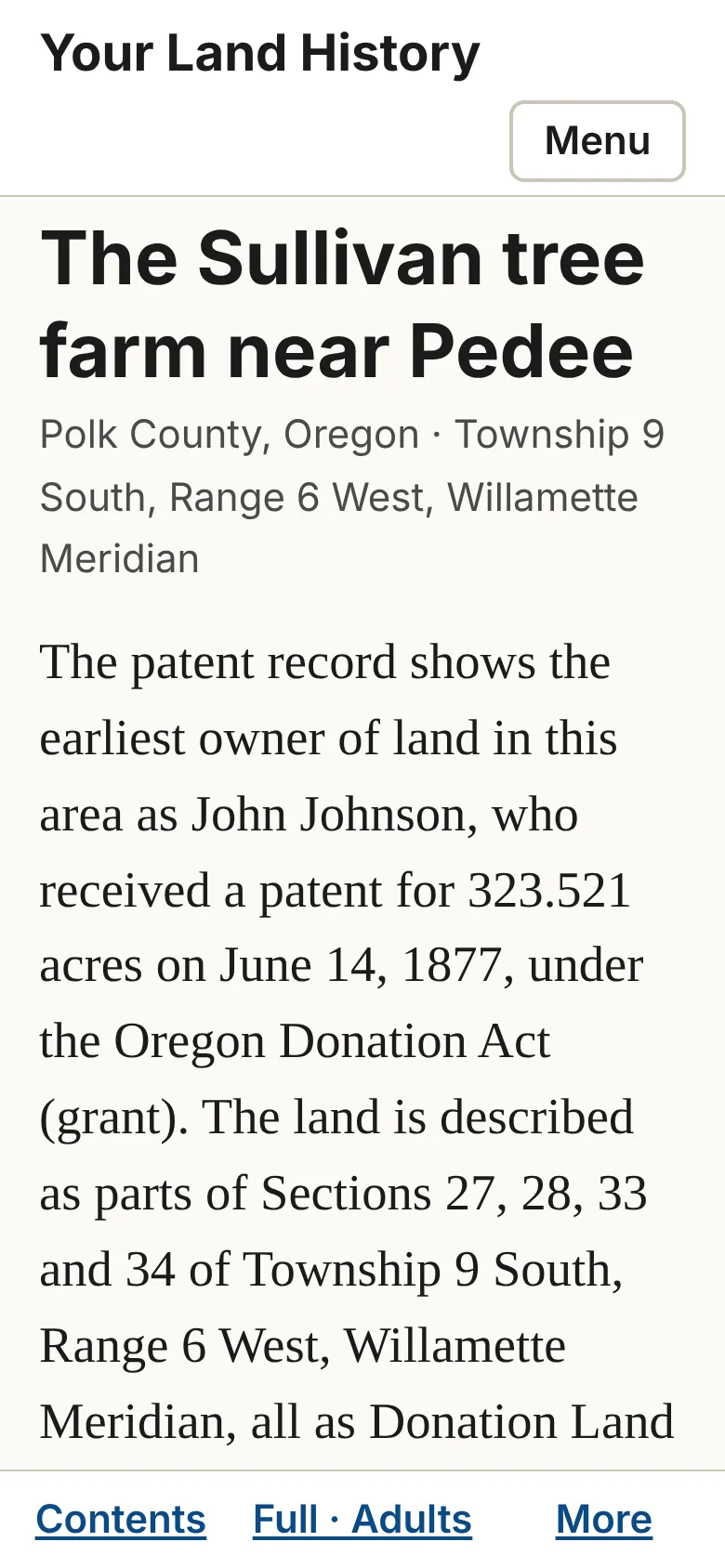
Chapter 24. My land, Forget this land and Larger text
Part 3. Doing more.
My land
My land, in the header, lists the reports made in this browser, newest first, with the line "Reports you make in this browser are listed here. To open one on another device, use its link." If you clear your browser's data, or switch browsers or devices, the list starts empty, but your reports still exist at their links.
This report
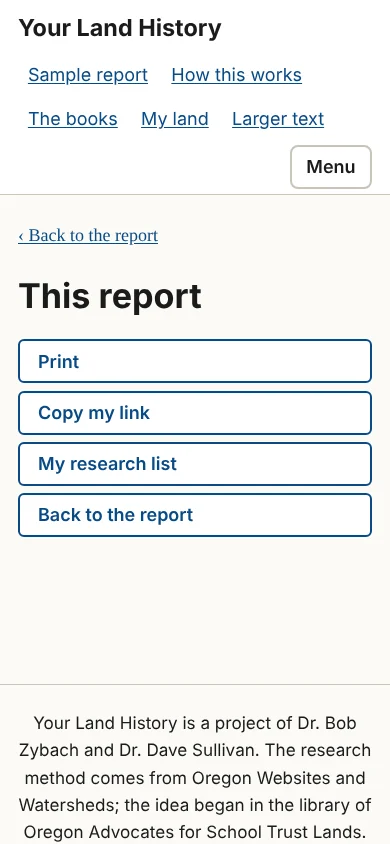
On a phone, More in the bottom bar opens a short menu called This report: Print, Copy my link, My research list, Forget this land (on your own reports), and Back to the report.
Forget this land
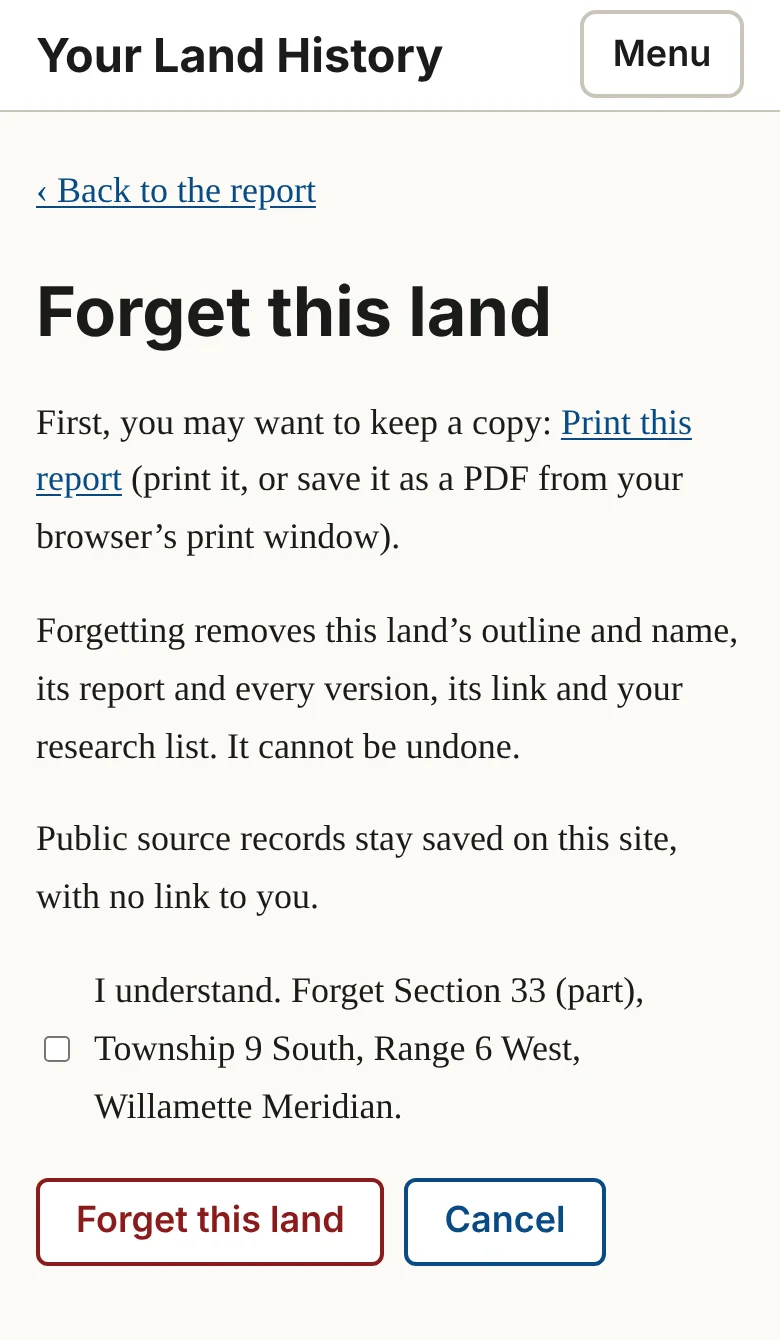
Forget this land removes a report for good. It is offered on your own reports, at the end of the appendix and in This report, never on the sample. The page begins: "First, you may want to keep a copy: Print this report (print it, or save it as a PDF from your browser's print window)." Then it explains: "Forgetting removes this land's outline and name, its report and every version, its link and your research list. It cannot be undone." The public source records stay saved on the site, with no link to you.
To go ahead, tick "I understand. Forget [name of the land]." and touch Forget this land, or touch Cancel. The page says the link goes too, so print or save first anything that you, or anyone you gave the link to, will want to keep.
Larger text
Larger text, in the header, makes the words bigger on every page. On a phone, touch Menu, then Larger text. It then reads Normal text; touch it to go back. For larger still, use your browser's zoom: hold Ctrl (Windows) or Command (Mac) and press the plus key, or on a phone spread two fingers apart on the page.